Work chat for your team and your clients
jild is a messenger for small and medium businesses. Staff talk in groups and one to one, and send files and voice messages. You invite a client to a chat with a link: they open it in a browser, install nothing, and see only that chat.
The iPhone and Mac apps are coming to the App Store soon.
Got an invite link? Open the link the company sent you. Client links work in any browser.
iPhoneMacbrowser for clients
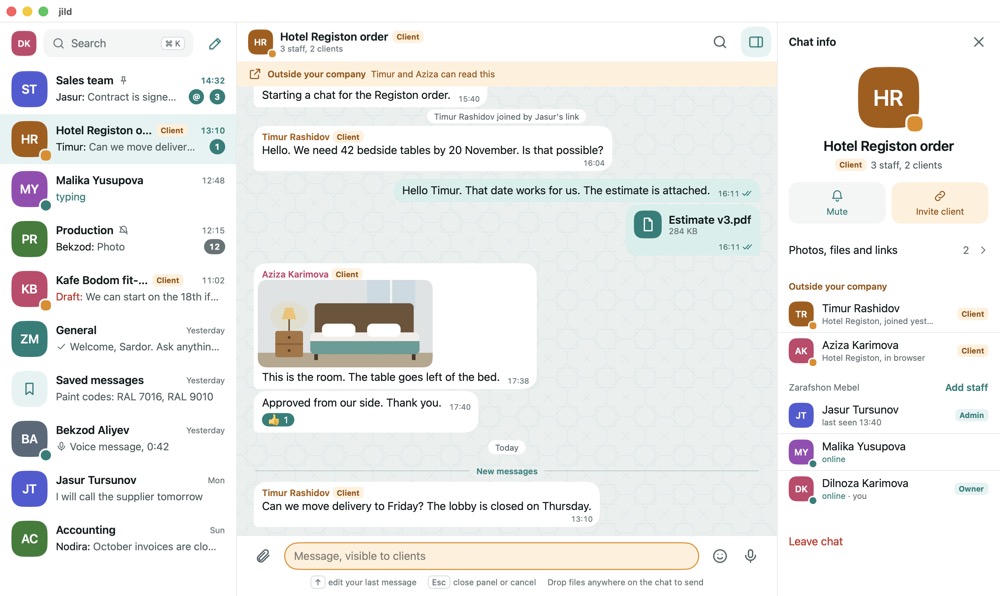
A separate place for work
Many teams run their work in groups on a personal messenger. Work and personal chats get mixed up, people who leave keep the whole history, and clients see staff’s personal numbers. jild is built for exactly that.
- One space for the company. The chat list, the groups and the staff directory belong to the company, apart from your personal chats.
- People who leave don’t take the chats with them. When an admin removes someone from the company, their sessions on every device end at once and they leave every chat. Their messages stay with the team.
- Clients don’t see your number. A client sees the names and photos of the people in the chat. Phone numbers, email addresses and the staff directory stay hidden.
Chats with clients
In any group, tap the chat name and choose “Invite client”. A link is ready: send it to the client in a messenger, by text message or by email.
The client opens the link in any browser, on a phone or a computer, types a name, a phone number and the code from the text message, and is in the chat. No app, no password.
- A client sees only the chat they were invited to: not the company’s other chats, its directory or other clients.
- A client sees messages from the moment they joined. Everything before stays hidden.
- On your side the chat is marked in amber wherever it appears: a “Client” tag in the list, an “Outside your company” strip under the title that names who can read it, and a message field that says “Message, visible to clients”. Posting an internal note there by mistake is hard.


Bring your team in with one link
The owner or an admin taps “Add people”, and a link and a QR code are ready. Share the link in any messenger, show the QR code, or pick a number from your contacts to send it by text. The new person types their phone number, the code and their name, and that’s it.
There are no passwords. If a text message doesn’t arrive, the code can come by email. A staff link works for 7 days unless you choose 1 day, 30 days or no expiry. You can also limit how many people use it, and turn it off at any time.
Four fixed roles, nothing to configure:
- Ownerstarted the company and can rename it
- Adminadds and removes people, changes roles, manages links
- Memberchats in the company and invites clients to their chats
- Clientsees only the chats they were added to

As simple as the messenger you already use
Nothing to learn: messages, replies and files work the way you expect.
Replies, reactions, edits
Reply with a quote and react. Edit your own message within 48 hours or delete it for everyone. Forward to up to 10 chats at once.
Voice messages
Hold the microphone to record, slide left to cancel, slide up to keep recording hands-free. Play back at 1x, 1.5x or 2x.
Photos, videos and files
The estimate, the drawing, the photo of the room: it all stays in the chat. If the connection drops, an upload continues where it stopped.
Search
Across all chats, people and files. Search runs on your device, so it works without a connection.
Pins and mentions
Pin the important message to the top of the chat. An @mention gets its own badge in the list. In groups you can see who has read a message.
Saved messages
A private chat with yourself for notes and files.
Without a connection
A message you write offline waits and goes out as soon as you are back online. Chats are kept on the device, so they open at once.
Notifications
Mute a chat for an hour, 8 hours, until tomorrow or until you turn it back on. Hide message text in notifications if you prefer.
The keyboard on a Mac
⌘K jumps to any chat, ↑ edits your last message, and you can drop files straight onto a chat.
Three languages, two themes
Uzbek (Latin), Russian and English. Light and dark.
Plainly, about your data
- Only the members of a chat can see it. The database itself enforces this: even staff cannot open a chat they were not added to.
- The connection to the server is encrypted (TLS). On iPhone and Mac, chats are stored encrypted on the device.
- No ads, no tracking, no third-party analytics. Your contacts are never uploaded.
Not end-to-end encrypted. Messages are stored on our server, and the server can read them. That is what makes search, several devices and the browser client for clients possible.
How to start
- Install jild on your iPhone or Mac.
- Enter your phone number and the 6-digit code from the text message.
- Type your name and your company’s name. You become the owner.
- Invite your team with “Add people”, and clients from inside a chat with “Invite client”.
Get the app
The iPhone and Mac apps are coming to the App Store soon.
Did someone send you an invite link?
A client link opens in any browser, with nothing to install. A staff link opens in the jild app.